The layout
The editor has three regions:- Left panel is your toolset, organized into tabs:
- Agent generate with AI (this is where most scenes start).
- Assets every generated or placed asset in the scene, as a list.
- Shapes the individual primitives (boxes, cylinders, and so on).
- Lights the lights you have added plus the global scene lighting.
- Robotics robot spawns, semantic regions, and sensor anchors.
- Scene scene type, physics defaults, and export settings.
- Center is the 3D viewport, with the transform and Play tool strip in the top-left corner.
- Right panel is the Inspector (properties of the selected object) and the Asset Library (every asset generated for this scene, ready to re-place).
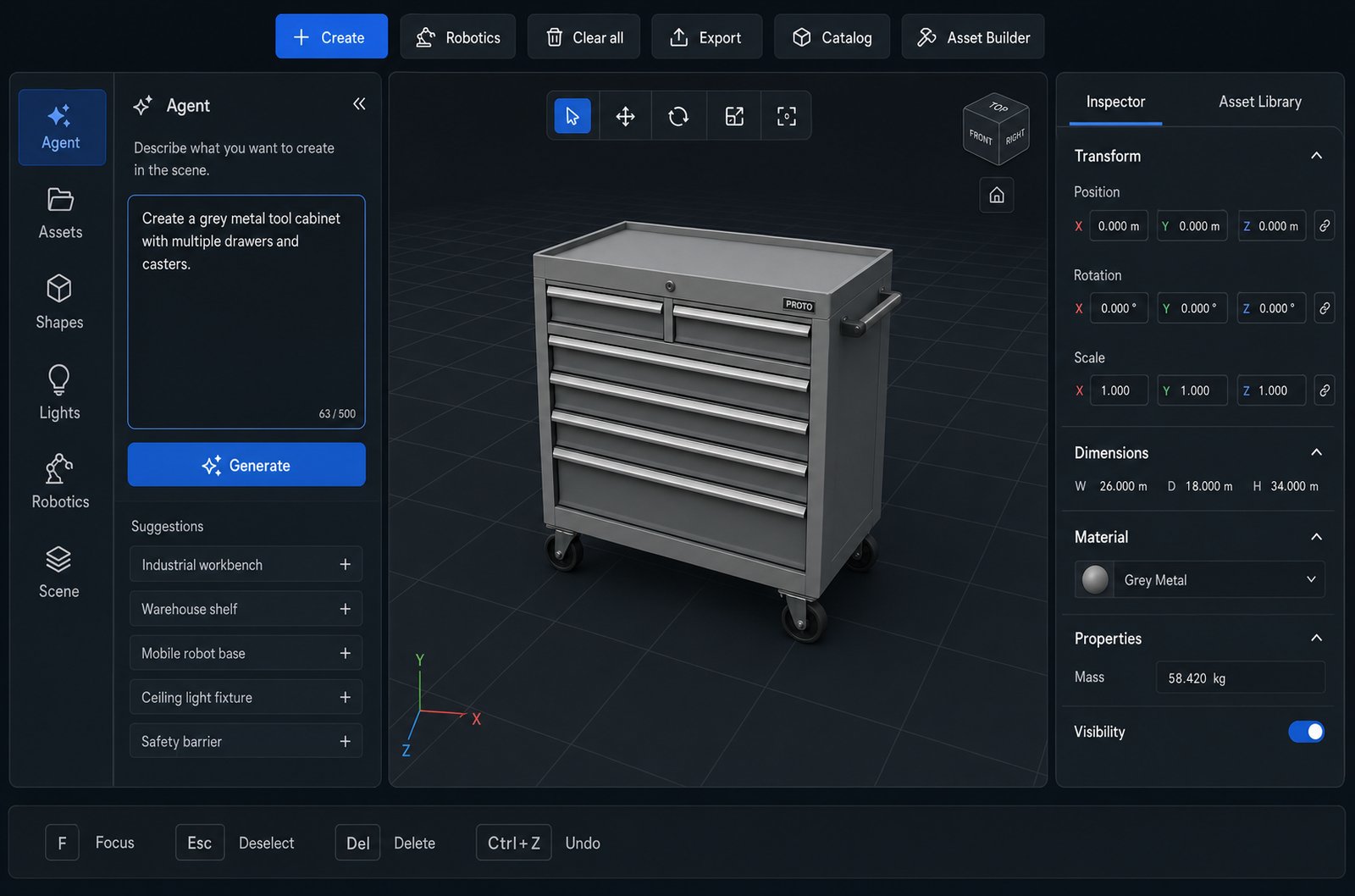
The editor: left toolset tabs, center viewport, right Inspector and Asset Library.
1. Describe what to build
On the Agent tab, type what you want in plain English and press Enter. You can describe a single asset, a full scene, or a robot workspace.a red metal toolbox with a hinged lid and a carry handle
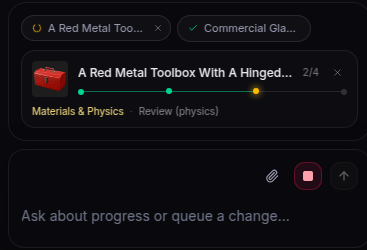
The Agent input bar. Type a prompt and press Enter; attach a reference image with the paperclip.
Add a reference image (optional)
Click the paperclip to attach a photo or sketch, or just drag an image onto the bar. Gizmo matches the generated asset’s shape, proportions, and materials to your reference. This is the fastest way to get a specific look.Write prompts that generate well
The agent builds joints and collision geometry around the parts you describe, so the more concrete you are about structure, the better the result:- Name the moving parts. Say which pieces should open, rotate, or slide (for example “a cabinet with two hinged doors and one sliding drawer”). Each becomes an articulated joint.
- Give a rough size. “About 1.2 m tall” keeps the asset at a realistic scale for a robot to interact with.
- Call out materials and affordances. Mention handles, knobs, or grips you want a robot to grasp, and the material (metal, wood, plastic) for each part.
- Start simple, then iterate. Generate the core object first, then refine it with follow-up messages (see step 3).
2. Review the plan and start generation
For a full scene, Gizmo first prepares a plan listing the assets and background. Review the plan card, then click Generate to start building. Submitting the initial prompt starts planning; the scene waits for this approval before its assets are built. Once generation starts, a progress panel streams each stage live just above the input bar. Under the hood the agent plans the asset, generates each component, assembles and reviews them, refines materials, then wires up joints and physics, validating the result for robotics use.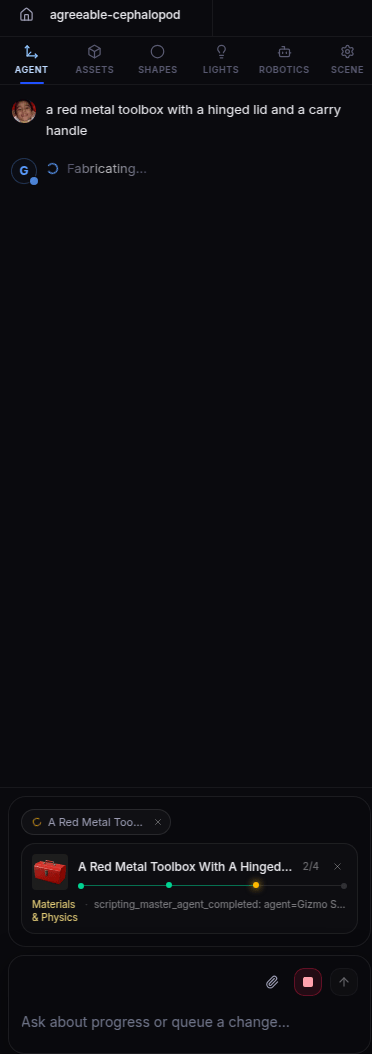
The generation pipeline streaming progress (planning to assets to materials and physics to finalize).
- Queue a follow-up. Type another instruction and it is applied after the current step finishes.
- Stop. Cancel the run with the stop button.
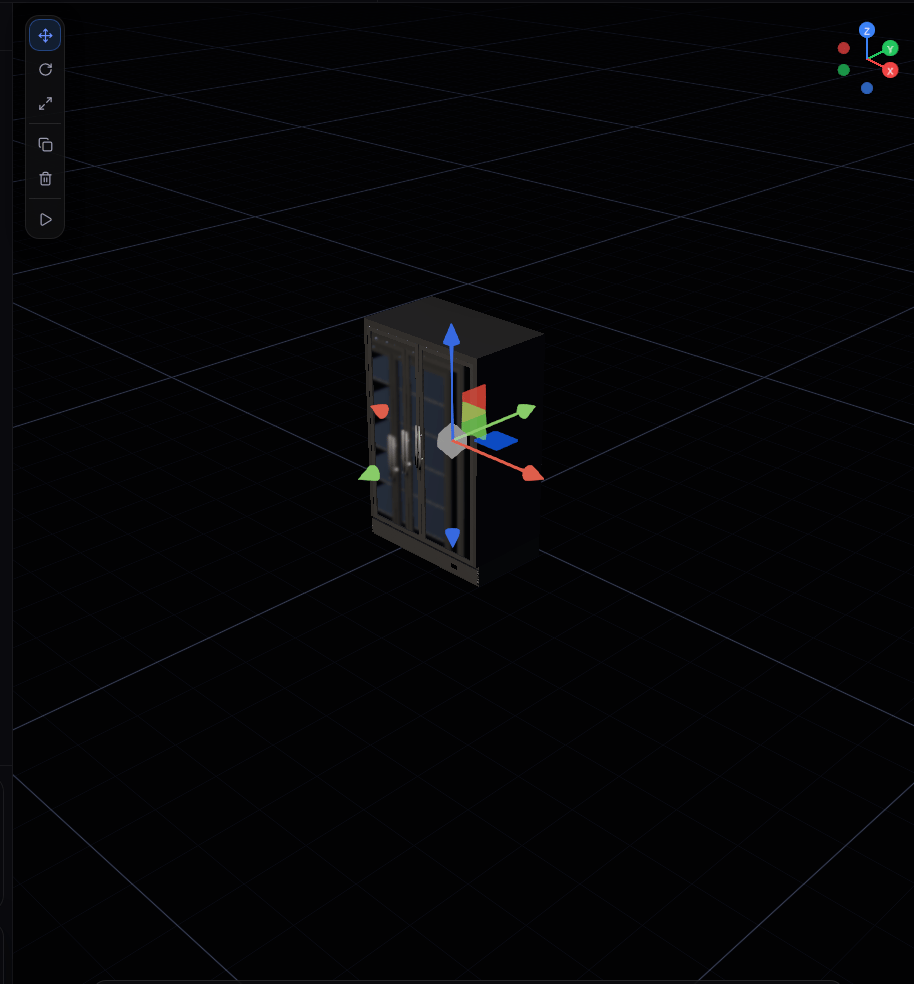
A completed asset rendered in the viewport.
3. Keep chatting to edit the scene
The Agent panel is not just for the first generation. Once a scene exists, keep typing instructions to change it: “make the drawer deeper”, “add a second shelf”, “swap the handle for a round knob”, or “scatter four mugs on the counter”. The agent edits the existing scene in place rather than starting over, so you can build up a complex environment one instruction at a time.4. Navigate and edit in the viewport
The tool strip in the top-left of the viewport controls how you edit selected objects: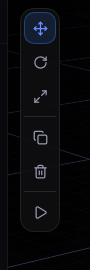
Viewport tool strip: Move, Rotate, Scale, and Play.
Camera and selection shortcuts
Test physics with Play
Press Play to drop the scene into a live physics simulation right in the browser. Use it to confirm that doors swing the right way, drawers slide along the correct axis, and nothing falls through the floor or jitters. Pause to freeze, and Stop to return to editing exactly where you left off. Running Play before exporting catches most articulation and stability problems early.5. Group parts so joints work
Joints connect parts that move relative to each other (a lid to a box, a drawer to a cabinet). Generated assets are grouped for you, but when you build or edit by hand you may need to group parts yourself so they articulate as one mechanism. On the Shapes or Assets tab, click Group, tick the parts that belong together (you need at least two), then click Done. Group by mechanical function: everything that should move together as one rigid body, with the parts that rotate or slide relative to it kept as separate, jointed pieces. See Joints and Physics for how articulation is modeled.6. Add things by hand
Generation gets you most of the way, but you can also build or extend a scene manually.- Create menu (toolbar) and the Shapes tab drop in primitives: box, sphere, cylinder, cone, capsule, torus, ellipsoid, wedge, tube, and more. The Create menu also adds a Rope, directional/point/spot Lights, and a Terrain > Import DEM option for bringing in GeoTIFF heightfields.
- Robotics menu (toolbar) opens the robot library and adds robot spawns, semantic regions, and sensor anchors (covered in step 8).
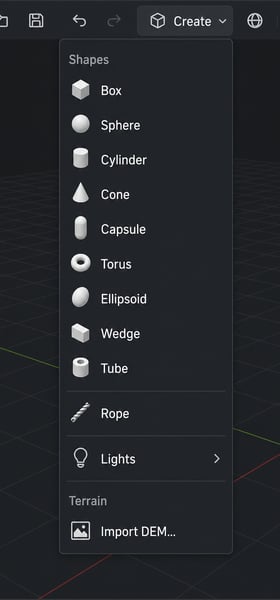
The Create menu: primitives, rope, lights, and terrain. The Robotics menu now lives separately on the toolbar.
Drop in premade assets
Click Catalog in the toolbar to browse a library of ready-made, physics-ready props. Search by name, preview in 3D, and place directly into your scene with no waiting for generation.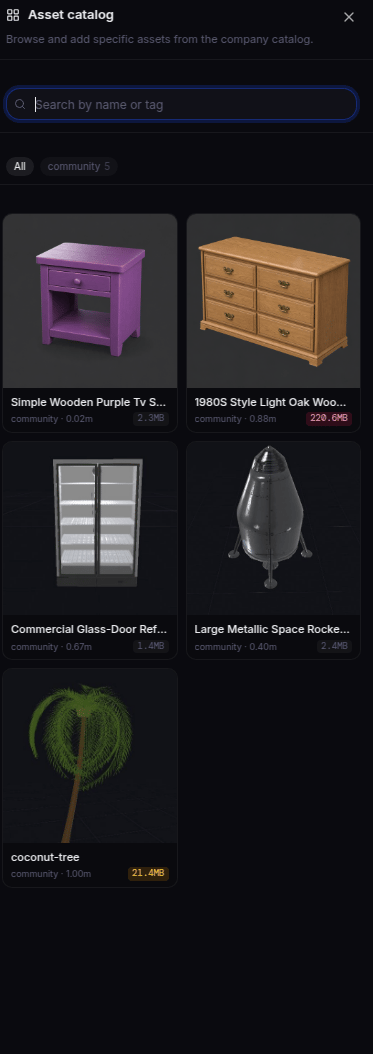
The premade asset catalog.
Build a single asset in isolation
Click Asset Builder in the toolbar to open a focused workspace for creating or refining one asset on its own, away from the full scene. Save it to the Asset Library when you are done, and it becomes available to place like any other asset.7. Inspect and fine-tune
Select any object to open the Inspector on the right. This is where you dial in the exact values a simulator needs.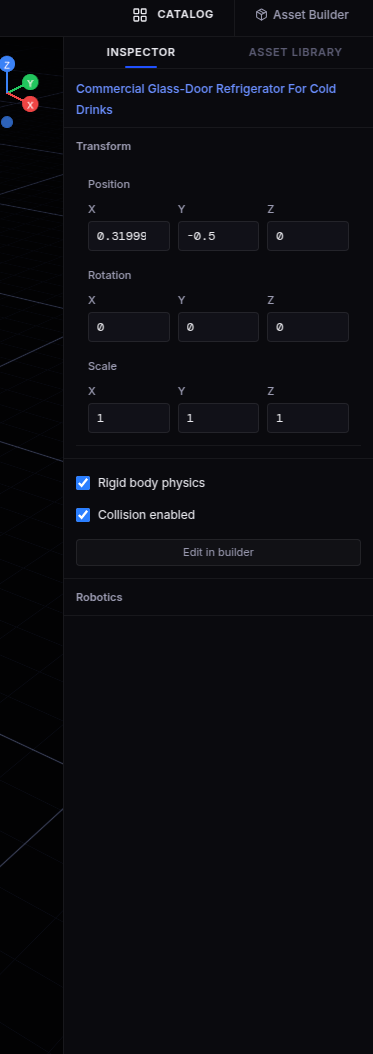
The Inspector showing a selected object's properties.
- Transform position and rotation (and scale), edited numerically or with the viewport gizmos.
- Dimensions the primitive’s size parameters.
- Material surface type and color, with physically based presets (metal, plastic, wood, glass, rubber, and more).
- Rigid physics mass, density, friction, and restitution, plus advanced options like continuous collision detection, linear and angular damping, and center of mass.
- Robotics properties on assets: body type (dynamic, static, articulated, kinematic, or visual-only) and collision approximation (convex hull, box, sphere, capsule, trimesh, or compound). These map directly to how the asset behaves in the simulator.
- Joints the joint type and its limits, stiffness, and damping for articulated parts.
- Are the dimensions reasonable for a robot to interact with?
- Are doors, drawers, and lids grouped correctly?
- Do joints rotate or slide in the expected direction (use Play)?
- Are collision shapes present and is mass / friction populated?
8. Set up the scene for robotics
The Robotics tab and the Robotics menu add the entities a simulator needs beyond geometry:- Robot spawn marks where (and which) robot enters the scene. Use the Robotics > Browse robot library dialog to search the built-in MuJoCo Menagerie catalog or pick from your own uploaded MJCF/URDF robots. You can also embed a specific robot at export time (see step 10).
- Semantic region a named volume (for example “pickup zone” or “goal area”) used for tasks, rewards, and navigation targets.
- Sensor anchor a placed pose for a camera, depth camera, lidar, IMU, or contact sensor, so your robot perceives the scene from a known location.
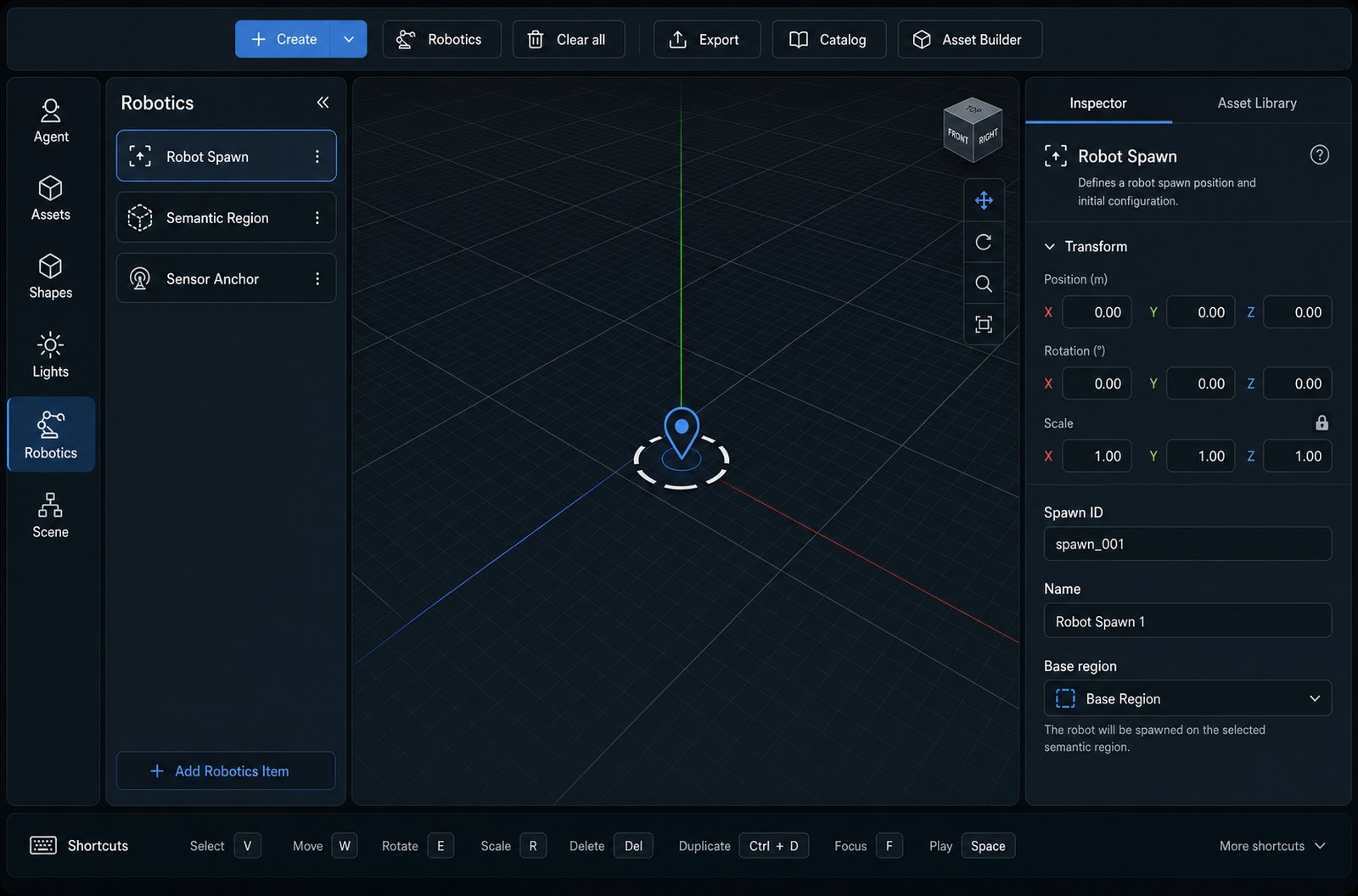
The Robotics tab lists robot spawns, semantic regions, and sensor anchors. The Inspector edits the selected entity.
9. Scene settings and physics defaults
Open the Scene tab to configure how the whole scene compiles and simulates. These defaults apply to every object that does not override them, so setting them once here saves a lot of per-object tuning.- Scene type manipulation, navigation, loco-manipulation, dexterous, or custom. This signals the intended task.
- Export target Isaac Sim, MuJoCo, or both, so the scene compiles for the right backend.
- Compile profile preview, default, fast (low fidelity), accurate (high fidelity), or GPU-accelerated, trading speed against fidelity.
- Global physics gravity, default friction, default restitution, and the simulation time step.
- Solver settings the integrator and friction cone, the PhysX solver (for Isaac Sim), and the MuJoCo solver with its iteration and tolerance controls (important for stable RL training).
- Aerodynamics optional air density, viscosity, and wind for scenes that use soft bodies or fluid shapes.
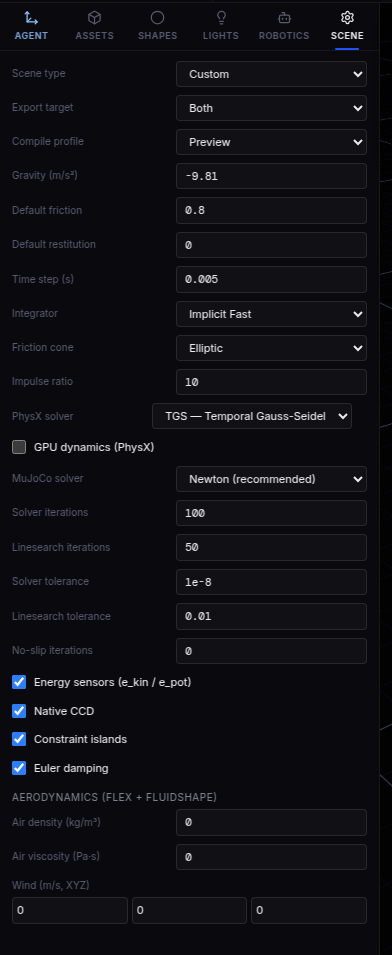
The Scene tab: scene type, export target, compile profile, and the full physics and solver settings.
Save your work
The scene autosaves as you work. The Save button in the toolbar turns green whenever there are unsaved changes; click it to save immediately, and it shows a checkmark once everything is stored. There is also a Clear all button next to it that empties the scene, so use it deliberately.10. Export to your simulator
When the scene is ready, use Export in the toolbar. The same scene can be exported to multiple targets, and joints and physics come along, so it is ready to simulate.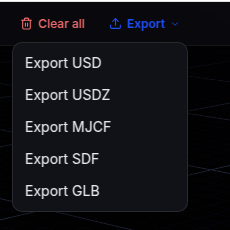
The Export menu: USD, USDZ, MJCF, SDF, and GLB.
A typical end-to-end flow
- Describe the asset or scene on the Agent tab, optionally with a reference image.
- Review any plan card and click Generate, then wait for generation to finish. Use chat to refine the result.
- Navigate the viewport and press Play to check joints and stability.
- Add anything missing by hand (Create menu, Catalog, Asset Builder).
- Inspect key objects to tune dimensions, materials, mass, and joints.
- Add robotics entities (spawn, regions, sensors) and set Scene physics.
- Save, then Export to your simulator.
Next steps
- First Workflow a condensed generate, preview, export run.
- Starter Prompts prompt ideas that generate well.
- Joints and Physics how articulation and physics work.
- Troubleshooting fixes for common issues.